Setting your default currency in CostMe
A price only means something in the right currency. Here's how to set CostMe's default so every number speaks your money.
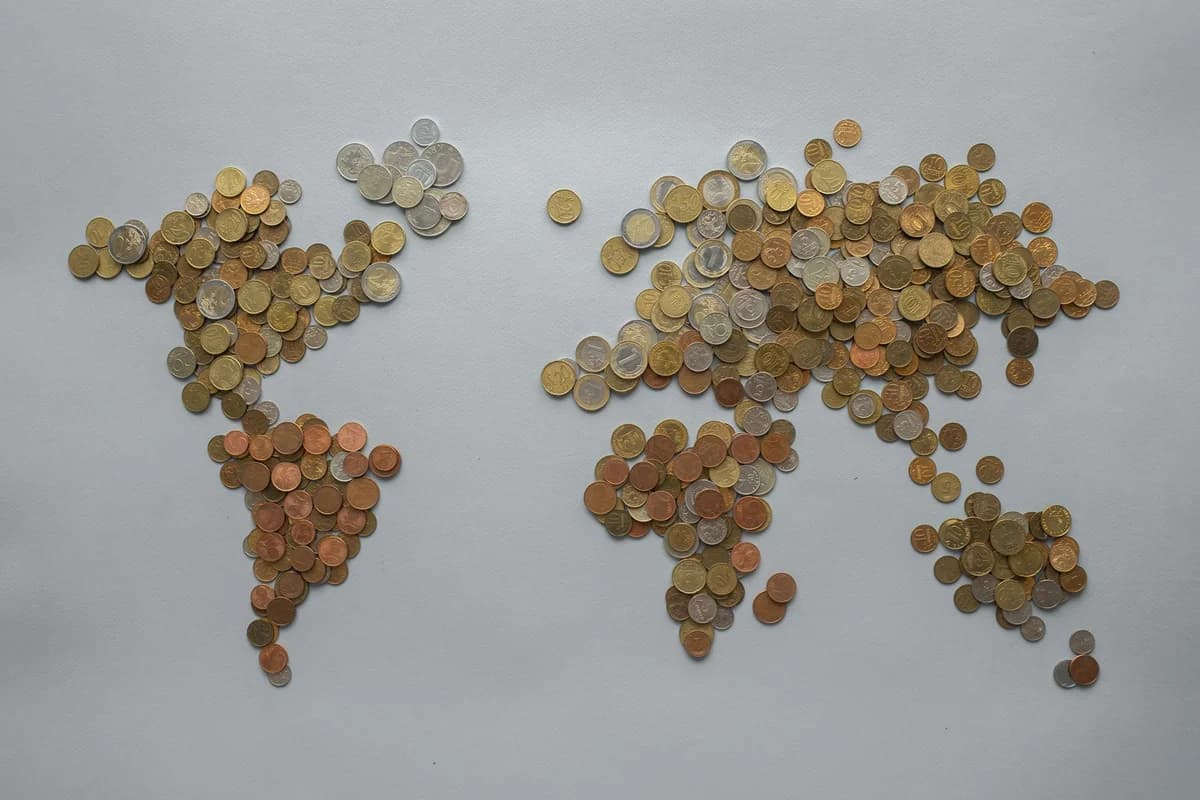
A price only means something in the right currency. If CostMe shows dollars and you think in pounds, every number feels a little off. Here is how to set your default currency so the math lands the way you read it.
What the default currency does
Your default currency is the unit CostMe uses everywhere. The price you type, your lifetime savings total, and the 30-year value it projects. Set it once and every screen speaks your money.
Why it matters
The whole point of CostMe is to make a price feel real. A number in the wrong currency makes you pause to convert, and that pause breaks the gut-punch the app is built to give you. Matching your real money keeps the feeling honest.
How to set it
- Open your settings inside CostMe.
- Find the currency option and pick the one you actually spend.
- Glance at the 30-year value on your next entry to confirm it reads right.
A note on switching later
Changing currency changes the symbol, not the past amounts you logged. If you move countries, your lifetime savings number stays the figure you actually saved. Treat the symbol as a label, not a live conversion.
The takeaway
Set your currency first so every price hits in the money you live in. One small setting makes the rest of the app feel like yours.
How this helps you in CostMe
This shows how to set CostMe's default currency so the price you enter, your lifetime-savings total, and the 30-year projection all read in the money you actually spend.
Start free