Adding a purchase from the CostMe widget
Impulse buys happen in seconds. CostMe's widget puts the first step one tap from your wallpaper. Here's how to use it.
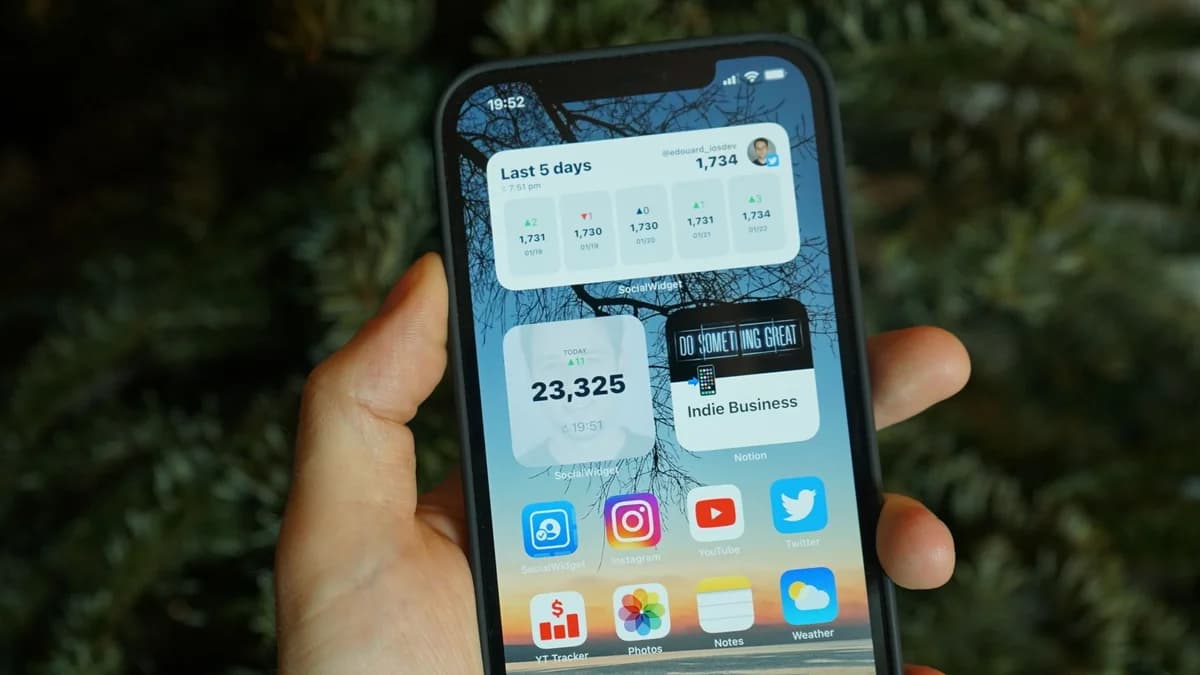
The faster you can check a price, the more likely you are to do it before you buy. CostMe’s home-screen widget puts the first step one tap from your wallpaper. Here is how to start a purchase straight from the widget.
What the widget does
The widget is a small panel on your home screen that shows a bit of your progress and gives you a shortcut into the app. Tapping it jumps you to entering a price, skipping the hunt for the icon. See setting up the CostMe widget to add it.
Why the shortcut matters
Impulse buys happen in seconds. If checking the real cost takes effort, you will skip it and tap buy instead. A widget on your home screen removes that friction, so the smarter move is also the easier one.
How to add a purchase from it
- Tap the widget when an urge hits.
- Enter the price CostMe opens to.
- See the projection, then resist or send it to the 48-hour vault.
Make it your checkout reflex
The widget pairs naturally with the moment you are about to pay — see using CostMe before you checkout online. Tap, check, decide, then buy or skip.
The takeaway
The widget turns a price check into a one-tap habit. Put it on your home screen and let the easy path be the wise one.
How this helps you in CostMe
This shows how CostMe's home-screen widget shortcuts straight into entering a price, so the 30-year cost check beats the impulse. Then you resist or use the 48-hour vault.
Start free